Home Of Technology
  • Home
  • About
  • Contact
  • DMCA/PRIVACY
  • Home
  • Mobile
    • Android
    • iOS
    • BLACKBERRY
    • NOKIA
    • WINDOWS PHONE
  • PC tutorials/apps
  • Browsing Tips
  • ONLINE BANKING
  • TECH NEWS

Wednesday, 18 October 2017

Microsoft Edge Browser Now Available For Android

 Unknown     09:08:00     ANDROID, TECHNOLOGY NEWS     No comments   


microsoft-edge-for-ios-android.jpg

Microsoft Edge is a well-known browser that was developed by Microsoft, it came as a default browser on windows 10. It was designed to be a light weight browser and it was integrated with Cortana.
Microsoft Edge Browser is now ported to Android Operating System and it’s already available for download.
The browser had already been made available to 10k Apple users for TestFlight apps, so it isn’t available yet for iOS users to download.
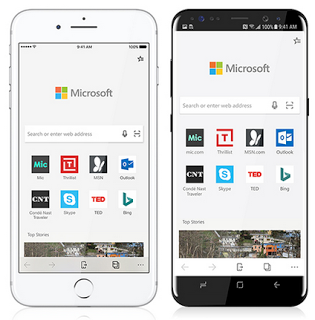
Microsoft Edge.png
Microsoft Edge Browser is made primarily for those who already use Edge Browser on Computers and would want to synchronize their passwords, bookmarks, history, saved pages on their mobile version of Edge Browser.
The Android version of Microsoft Edge Browser is available globally, it isn’t constrained to those in the U.S.
Edge Browser enables users to flawlessly work interchangeably between a mobile phone and a desktop computer.
The Application came with several enticing features like QR Code Reader, InPrivate, Reading view, Data Sync, Hub view and many more.

Where would I be able to download it?

Although the app is still in a Preview phase, this means that lots of features are incoming.
Download the application from Google Playstore HERE

What do you think about the browser?

Will it supersede other browsers like Firefox, Google chrome and Samsung browser?



oceanofapk_progress.gif


Image source: 1 - 2 - 3
Read More
  • Share This:  
  •  Facebook
  •  Twitter
  •  Google+
  •  Stumble
  •  Digg

Recover Deleted Photos or Data On Your Android & iOS Devices

 Unknown     09:06:00     ANDROID, IOS     1 comment   


We usually delete some unwanted pictures on our smart phones and some times, we delete valuable pictures unintentionally, and we've coincidentally deleted an entire collection of vacation pictures or possibly someone wiped your data accidentally.


Disckdigger.png
One thing to remember, once you've erased your photos or other files, it isn't safe to use your smart phone until the files are recuperated. When you delete any data on your device, it is not permanently deleted, it just creates space for more data. Any activity you carry out on your smart phone like taking new photos can create new data and overwrite that space, making the recovery of lost files impossible.
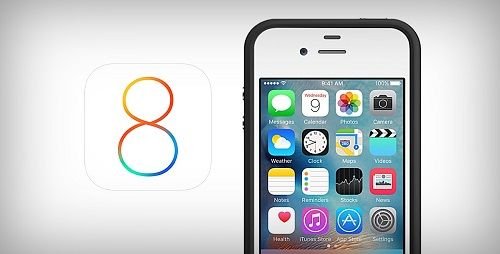
On iOS 8 firmware, Apple made photo recovery possible, making it easy to recover lost photos, but when it comes to recouping erased photos from Android smartphones and memory cards you'll require a little help from a third party application.
However, some Android smartphones now accompany recovery feature. An example of such device is Gionee M6, when you erase a photo on it, it will be put away in a virtual memory space and after one week (7 days), it will then be deleted permanently.
This tutorial will help you recover your lost data or photos on your Android or iOs devices.


How to recover deleted photos on an iPhone device running on iOS 8

iOS-8-for-iPhone-4.jpg


Here’s how to get it done:


  • Launch your Photos Application and go into your albums.
  • Navigate to the bottom and click on "Recently Deleted."
  • Inside that folder, you’ll see all the photos you’ve erased during the past thirty days. To recover you just need to tap the photo you need and press "Recover." You can likewise press "Delete" to permanently delete that photo.
If you are trying to recover photos that are older than 30 days, you’ll need to restore your phone with a saved backup or restore your phone utilizing a saved backup on iTunes or use a third party photo recovery application.


How to recover deleted photos on Android Smart Phones

oceanofapk_progress.gif


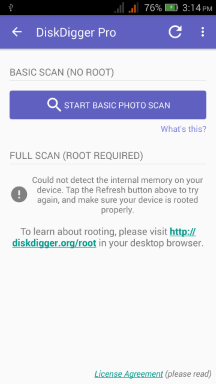
There are various applications on Google Playstore that can help you recover your lost photos, but I’ll recommend DiskDigger because it’s fast and easy to utilize.
DiskDigger is an Android application that helps you recover deleted photos on your Android smartphone.
It is very easy to use and it works even without your device being rooted.
It can recover lost photos from your device internal storage and your SD card. But if your Android smartphone is rooted, the application will search all of your device’s memory for photos and videos. If your Android smartphone isn’t rooted, the app does a limited scan by searching for thumbnails and cache.
But there are other ways of recovering deleted photos on your device, if you enabled scheduled automatic backup on either Googledrive app or Dropbox app, you can always download them back.
DiskDigger has two versions, the free and premium version. DiskDigger pro version cost $1.6 on Android Playstore. The advantage of the premium app is that you can recover other data apart from photos.
I’ll provide a direct link for the activated premium version
disckdigger-pro.png
Download DiskDigger application on Android Playstore here
Download DiskDigger activated premium version here

How to recover your photos with DiskDigger application


  • Launch the DiskDigger application and tap on "Start Basic Photo Scan", a list of recently deleted files will be displayed for you to recover.
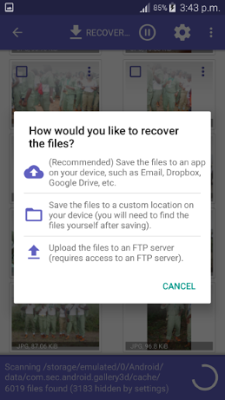
  • When you see the photo you intend to recover, simply select it and click "Recover" button at the top.
  • The application will then ask you to select the destination folder where you want the recovered photo to be stored, either internal memory or SD card.
file-recovery.png
Read More
  • Share This:  
  •  Facebook
  •  Twitter
  •  Google+
  •  Stumble
  •  Digg

Monday, 9 October 2017

UC Browser is More Than Just a Browser

 Unknown     14:04:00     No comments   


Today I’ll be expounding a vital component of UC Browser (PC) you might have known before, but for the benefit of others who doesn’t know.


UC Browser is a well-known internet browser right from the days of java & Symbian phones to present Android OS and computers running on windows, mac or Linux operating system.
It has one of the best download managers with speed boost, accelerated page loading, video grabber, Built in Ad-block e.t.c.
It also has one feature “Virtual wifi” that made it stand out from other web browsers.


images.jpg


With “Virtual wifi”, you can share your PC’s internet connection to other devices within your premises.
You may find yourself in a location where Wi-Fi isn’t available, the only access to the internet could be through Ethernet cables via "local area network" (LAN) and you might want to share the internet connection to your smart phones, tablet and other devices that aren’t Ethernet supported.
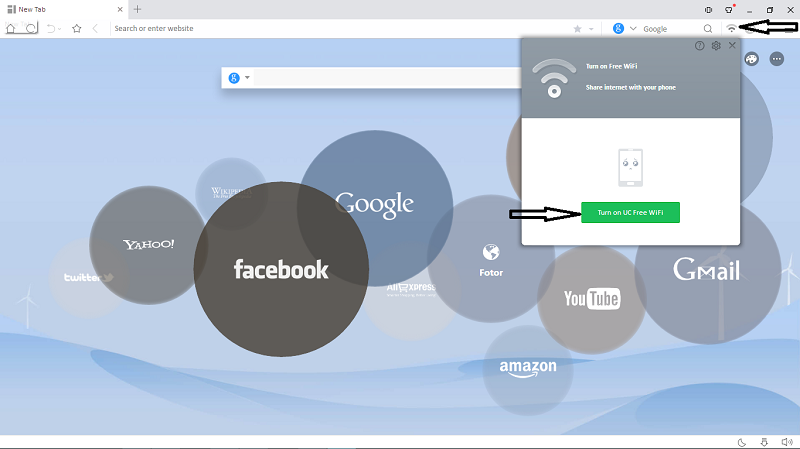
Virtual wifi will do the magic for you, simply download Uc Browser, install and launch Virtual wifi.


uc4.png
uc3.png
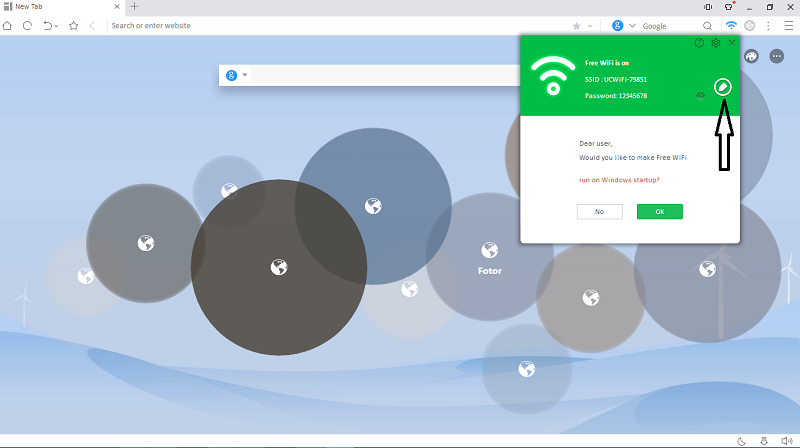
Once it’s connected, edit and change your Wi-Fi name and password. Connect your devices and enjoy.
You can decide to run it on windows start up
Make sure your drivers are up-to-date, else you might experience Blue Screen of Death (BSOD).

I hope you find this useful.

Read More
  • Share This:  
  •  Facebook
  •  Twitter
  •  Google+
  •  Stumble
  •  Digg

Sunday, 8 October 2017

Why You Should Start Using VPN

 Unknown     08:06:00     No comments   


The word “VPN” might not sound new to you, you may have come across the word at one or two occasion via the internet, mobile phones or computers.


VPN is an abbreviation of  "Virtual Private Network" and the most vital thing you need to know about VPN is that it secures your device's internet connection, it ensures that all the packet data which is sent and received are secured and encrypted from prying eyes. It enables you to surf anonymously knowing fully well that your online activities are secured and hidden from spies, this could be either hackers, Internet Service Provider (ISP) or Government.

VPN comes pre-installed on your android smart phones which is accessible through the settings, likewise windows pc via Network and sharing center.


Setting up a VPN connection might not be easy for Nobs, it may require networking skills, that’s why there are several VPN software’s out there that comes pre-configured with necessary settings, once installed, you need not put any additional settings unless you want to change your I.P (location). Although they aren’t free, they’re paid VPN services that come with weekly, monthly, yearly and lifetime subscription fees.


Pros of using a VPN.


1.    VPN is a private network, this implies that it is secure to carry out internet transactions with 100% safety guaranteed.

2.    VPN allows you to surf the internet anonymously in such a way that your Internet Protocol (IP) address will not be traced.

3.    With VPN, you can be surfing on highly secured connections and could be able to dodge some of the publicly distributed online malwares, spywares, worms, adware, back doors, bots, virus such as Trojans etc.

4.    There are some websites you can’t visit, you can’t even view its content if you’re from a particular area, for such, VPN will do the magic, and unravel the contents for you.


 Cons of using a VPN.


1.    Some VPN software can slow down your smart phone or windows PC, Its RAM consumption might be massive.

2.    Downloading freeware VPN software to your device can put your device at risk, exposing it to various kinds of malwares and viruses like the recent "ExpensiveWall" malware on Google playstore that has infected more than 21million Android devices.

3.    If the VPN service is free, then you aren’t safe. Moreover the company providing the service has to find a way of remaining in business, maintaining their servers and paying their staffs. So it’s either you pay for premium services or use freeware VPN services that might do you more harm than good.
Read More
  • Share This:  
  •  Facebook
  •  Twitter
  •  Google+
  •  Stumble
  •  Digg

Friday, 4 August 2017

"On-Screen" FingerPrint Scanner For Smartphones Coming to Reality.

 Unknown     05:48:00     ANDROID, TECHNOLOGY NEWS     No comments   


The future of "on-screen" fingerprint scanner is coming to reality, despite our high expectations on Samsung to include it on its Galaxy Note 8 launching this month. But they didn't.

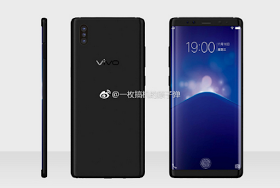
At this year's MWC Shanghai, Chinese producer Vivo showed smartphone prototypes that utilize Qualcomm's cutting edge ultrasonic fingerprint scanners. While Qualcomm plainly expressed that it will begin sending the technology to smart phone producers for commercial testing in Q4 2017, it gives the idea that Vivo may have gotten a bit of a head start. 

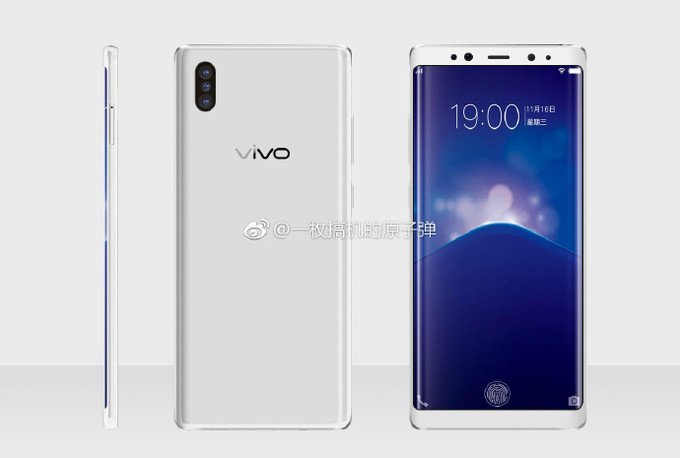
Pictures demonstrating the forthcoming Vivo Xplay 7 (otherwise called X20) rose today. They basically affirm that the handset will be the first to have an on-screen finger print scanner. This bodes well, as one of the prototypes at MWC Shanghai was based on the current Xplay 6 Model. 


Slides from a presentation about the phone leaked out initially. Although the quality isn't too great, we can obviously observe the "all-screen" front of the handset which looks like the Galaxy Note 8 renders released so far.
Apart from the on-screen fingerprint scanner, it also comes with three cameras at the back that performs different functions and two selfie cameras.
Right now, there's no data with respect to the exact hardware details of this phone, however we'll most likely discover soon.


Image source: 1, 2, 3.
Read More
  • Share This:  
  •  Facebook
  •  Twitter
  •  Google+
  •  Stumble
  •  Digg

11 Ways to Make Your Smartphone Battery Last Longer

 Unknown     05:48:00     ANDROID, IOS     No comments   


I came up with this article because my smartphone battery was draining unnecessarily today, and i got it fixed in few minutes.
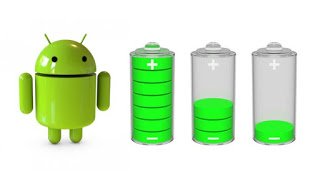
One of the major issues smartphone users normally complain of is ''battery'' It's either the phone battery is bad, drain so fast or doesn’t last as expected. Obviously, most people who buy smartphones do not check the battery capacity. Some smartphones batteries are disaster in the making. Charge it and after 30min, you are charging it again.
                                  
In this article, I’m going to be showing you 11 ways to make your smartphone battery last longer than expected.

11 Ways to Make Your Smartphone Battery Last Longer

1. Avoid Keeping Your Phone in a Hot or Heated Surface:
Most smartphones have battery made of either Lithium ion or Lithium Polymer battery. These two elements used for production of cell phone batteries are badly affected when there are exposed to heat and this leads to drastic drain of the battery.
Make sure you device is always in a cool environment.

2. Turn on Power Saving Mode:
Power saving mood help to conserve your cell battery, this feature limits you to necessary functions like call, messages, time, contacts etc. It saves your battery up to 90%, releasing more power to your cell. So when you don’t need internet service in your mobile phone put it in power saving mood. Or when you battery gets to 50%,  put it in Power Saving Mode.
To turn on Power saving mode, go to settings>>battery>> by the right side, click on battery saver and turn it on.

3. Dim The Screen Brightness or Use Auto Brightness: 
                                       
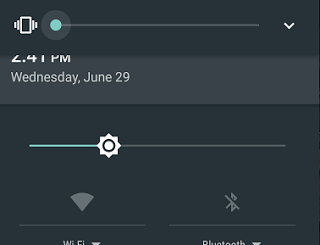
Phone brightness consumes 30% of your battery. Make your battery last longer by setting the screen brightness to auto so that it can adjust to indoor and outdoor lighting.

4. Keep The Screen Timeout Short:
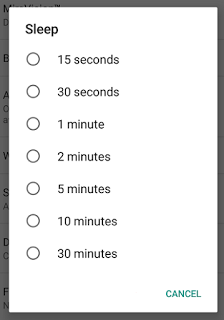
Every seconds here count. Go to settings>>Display and hit the Sleep button. Set it to 30 seconds or 15seconds.
                                                  

5. Turn Off Your Bluetooth:
No matter now much you love using Bluetooth with your hands-free headset, your wireless speaker or activity tracker, the extra radio is constantly listening for signals from the outside world. Hence consuming your phone battery.

6. Switch Off The GPS Tracking:
Only use your GPS when navigation and location services are necessary. GPS tracking consumes a lot of energy, tracking your location via radio waves and satellites will surely give you a dead cell.

7. Turn Off All Auto Updates:
Most smartphones especially iPhones try to keep you updated by automatically installing new version of apps when they come out. Visit the store of the device you are using to deactivate.

8. Turn Off Background App Refresh:
Background App Refresh is a setting that allows apps to get updated with the latest content while you're not using them. It downloads the latest news or updates to an app. It's an awesome feature because it keeps your phone current, but it takes up a lot of battery life.
To disable go to Settings > General > Background App Refresh and turn it off.

9. Turn off Location Services:
Go to Settings > Privacy > Location Services to disable.

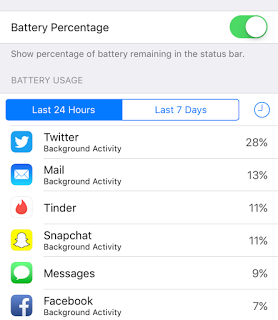
10. Check which apps use the most battery:
If you go to Settings > Battery, you can check to see which apps take up the most battery. Disable it.
                                           

11. Don't Use The Camera Flash in daylight:
Turn on Camera Flash only at night, Flash drains your battery life. So turn it off!

My smartphone battery takes me 48 hours without charging... Now tell me, how long does your smartphone battery take you?
Read More
  • Share This:  
  •  Facebook
  •  Twitter
  •  Google+
  •  Stumble
  •  Digg

Apple's IPhone 8; The Expectations

 Unknown     05:47:00     IOS, TECHNOLOGY NEWS     No comments   


Apple is expected to launch new iPhones in September.
There's been lot of speculations and reports about the forthcoming iPhone, including that it'll be redesigned .

The pressure is on Apple, and it's the tenth anniversary of the first iPhone, launched in 2007, and the company is expected to have some big plans to launch the event.

Here's what you need to know about the forthcoming iPhone: 

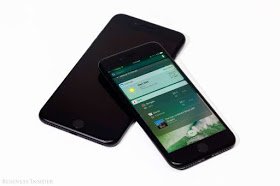
Apple is expected to launch three iPhones: one that is redesigned, and two updates to the current iPhone 7 and iPhone 7 Plus. Analysts have proposed a few names for the redesigned iPhone, including "iPhone Pro," "iPhone Edition," "OLED iPhone," and "iPhone 8," which we're calling it.
This report will concentrate completely on the iPhone 8.


Photo credit: business Insider.

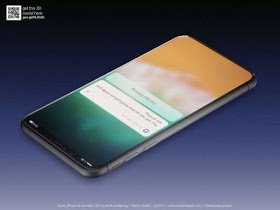
The redesigned iPhone is the model that has gotten the most attention. It's expected to have an edge-to-edge, curved screen with much smaller bezels than the current iPhone 7. The screen uses a newer kind of display technology called OLED that promises to use less power and provide darker blacks.


Photo Credit: Martin Hajek

Apple apparently affirmed the iPhone 8 redesign with significantly smaller bezels in this image included in HomePod firmware it dispersed. The codename for this image? D22.

via:
This design would enable Apple to pack more screen into the same size phone.
This bigger screen is expected to have a resolution of 1125x2436, as per Apple's leaked code and also a forecast from KGI Securities.

The iPhone 8 is expected to have a front camera with 3D sensing and modeling capacities, permitting it to take photographs, as well as to manipulate them. The front looking camera will be used for facial recognition, either to replace the Touch ID fingerprint sensor or to supplement it.

The back camera will  have its two rear lenses vertically oriented, as opposed to horizontal, like on the iPhone 7 Plus. 
With another edge-to-edge design, Apple is expected to remove the home button and build its functions into the screen.

It's vague whether the fingerprint sensor will be incorporated with the screen as well or whether the new "Face ID" feature replaces it.
Lastly, Apple will also be adding wireless charging to the models coming out in September.
Source:
Read More
  • Share This:  
  •  Facebook
  •  Twitter
  •  Google+
  •  Stumble
  •  Digg
Older Posts Home

Popular Posts

  • Call of Duty: Strike Team Android
    Game description:   Call of Duty: Strike Team : Call of Duty: Strike Team  - the USA was unexpectedly attack...
  • Stable Nougat 7.1.1 Rom For Infinix Note 3 Pro
    Hi everybody and users of Infinix Note 3 ace, here is something useful for all Infinix note 3 star users, its M.A.D Aosp in view of Android...
  • Completely Unlocked FIFA 14 v1.3.6 Mod and Data (No Root) Download, Install And Play
      EA Sport Android FIFA 14 has been the best Android football HD diversion so far because of its HD design, realness, disconnected elem...
  • Best 20 PPSSPP Games To Download & Enjoy On Your Android, Windows, iOS, BlackBerry 10 and Other Devices
      PPSSPP (an acronym for "PlayStation Portable Simulator Suitable for Playing Portably") is a free and open-source PSP emulat...
  • OS 10.3.2.2789 for all devices and Autoloaders
    OS and Radio links for SR 10.3.2.2514 (OS 10.3.2.2789 + Radio 10.3.2.2790) *  Operating Systems * QC8974: Blackberry Passport (Debric...

Blog Archive

  • ▼  2017 (43)
    • ▼  October (4)
      • Microsoft Edge Browser Now Available For Android
      • Recover Deleted Photos or Data On Your Android & i...
      • UC Browser is More Than Just a Browser
      • Why You Should Start Using VPN
    • ►  August (6)
    • ►  April (2)
    • ►  March (17)
    • ►  February (14)
  • ►  2016 (31)
    • ►  December (4)
    • ►  October (3)
    • ►  September (5)
    • ►  June (2)
    • ►  May (13)
    • ►  April (1)
    • ►  January (3)
  • ►  2015 (111)
    • ►  November (6)
    • ►  October (93)
    • ►  September (12)

Labels

  • AFFORDABLE DATA PLANS
  • ANDROID
  • BLACKBERRY
  • BROWSING TIPS
  • COMPUTERS
  • IOS
  • NOKIA
  • ONLINE BANKING
  • TECHNOLOGY NEWS
  • WINDOWS PHONE

Translate

Powered by Blogger.

Categories

ANDROID (61) TECHNOLOGY NEWS (26) AFFORDABLE DATA PLANS (24) COMPUTERS (24) IOS (22) BROWSING TIPS (13) NOKIA (9) BLACKBERRY (7) WINDOWS PHONE (4) ONLINE BANKING (2)

Copyright © Home Of Technology | Powered by Blogger
Design by Ememovic™